Multiple Zones
Step-by-Step Guide to Changing Content on Bharat Signage Ad Screens
1. Introduction
This guide explains how to update content on Bharat Signage ad screens using a USB pen drive. It covers how to set up multiple zones, configure Wi-Fi, and display date, time, and RSS feeds.
2. Tools Required
- USB Pen Drive
- Android Platform (TV or Media Player)
3. Create Folder for Content
- Plug the USB pen drive into your laptop.
- Create a folder named:
bharatsignage - Download the following from:
https://cms.bharatsignage.com/offline-usb/- Bharat Signage USB APK File
- configuration file
- setup file
- Copy all files into the
bharatsignagefolder.
4. Set Up Zones for Videos
Inside the bharatsignage folder, create these subfolders:
zone1– for full-screen videoszone2– for split-screen videoszone3– for three-part split screen
Add video files to the respective zone folders as needed.
5. Add Date, Time, and RSS Feeds
Create plain text files inside the bharatsignage folder:
-
RSS– Type your RSS message into this file (all caps, no extension). -
TIME– Leave this file empty to display current time (all caps, no extension). -
To rotate the screen:
- Create a file named
270for portrait90for reverse flip180for landscape flip0for normal landscape orientation
- Create a file named
-
Ensure the folder structure looks like this:
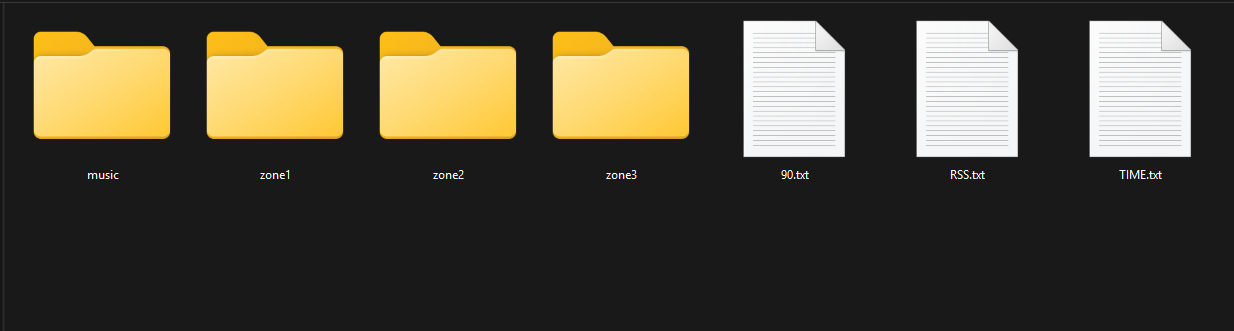
6. Set Up Wi-Fi
- Open the setup tab from the website.
- Enter your Wi-Fi SSID and Password.
- Download the setup file.
- Copy the file to your
bharatsignagefolder.
Wi-Fi will connect automatically when processed by the signage software.
7. Install Bharat Signage Software
- Plug the USB pen drive into the Android platform.
- Use the remote to open the File Browser.
- Locate and install the APK file.
8. Run the Content
- After installation, remove and then reinsert the USB.
- The signage will begin downloading all content to internal storage:
- Files from
zone1,zone2, andzone3will display according to layout. - RSS and TIME text will appear if files were created.
- Files from
9. Customization Tips
- Download custom templates to modify layout (vertical/horizontal splits).
- Adjust text size, color, and speed using the template configuration.
- Use gradient colors for RSS text for visual appeal.
10. Troubleshooting
- Folder must be named exactly:
bharatsignage - Make sure the config file is named:
configuration - Double-check Wi-Fi credentials inside the setup file
11. Support
For help or troubleshooting, contact Bharat Signage Support:
https://bharatsignage.com/contact-us/